Use GET Mobile
GET Mobile
GET Mobile is an online and mobile app that can be downloaded through Google play and the App Store. The app is affiliated with the University of Guelph for your convenience in managing your Campus Card. It allows students to upload their image for their Campus Card, view meal plan balances and transaction history, order food on campus and allows one to mark their card as lost.

GET Mobile App Instructions
1. Install the GET Mobile App on your Smartphone (iPhone, Android).
2. Once Installed, open the app, and select the University of Guelph from the list of schools.
3. Enter your University of Guelph Username and Password (Single Sign On)
4. When prompted, establish a pin for your app.
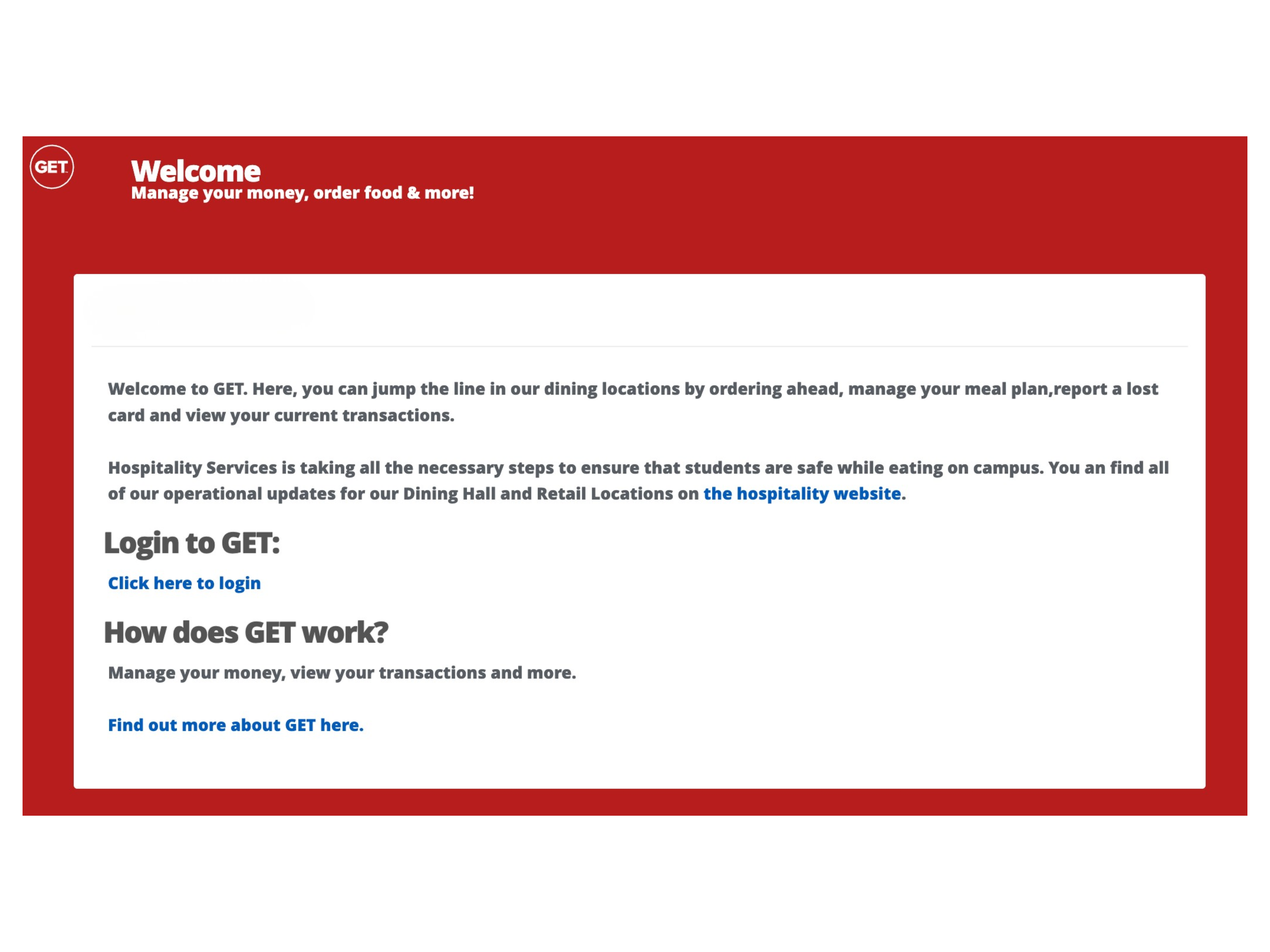
GET Website Instructions
1. Go to the University of Guelph GET Login Page
2. Click on the Login link.
3. Enter your University of Guelph Username and Password.
Tip: Bookmark this page for future use
Using the GET Mobile App
Now that you've downloaded the app and set up your account, here are a few things you can do.

View Balances & Transactions
- Once logged into GET Mobile, select the “Home” button on the menu bar along the bottom of the screen.
- Listed under Accounts you can see your meal plan accounts and the remaining balance.
- Listed under Transactions you can see all transactions, including when and where you made these purchases.

Report Card as Lost
- Once logged into GET Mobile, select the “Settings” button on the menu bar along the bottom of the screen.
- Select Report Card as Lost
- Select REPORT CARD AS LOST, this will freeze your card until you mark it as found or contact the Campus Card Office.
Report Card as Found
- Once logged into GET Mobile, select the “Settings” button on the menu bar along the bottom of the screen.
- Select Report Card as Found.
- Select REPORT CARD AS FOUND, if you found your lost card, and did not have a new one printed, this will allow you to begin using your campus card again.

Order Food
- Once logged into GET Mobile, select the “Order” button on the menu bar along the bottom of the screen.
- Select what restaurant you would like to order from, then select CONTINUE.
- Select what you would like to order. To add your items to your cart select ADD at the bottom of the screen.
- Select VIEW CART at the bottom of the screen, add your payment method and then at the bottom of the screen select PLACE ORDER.